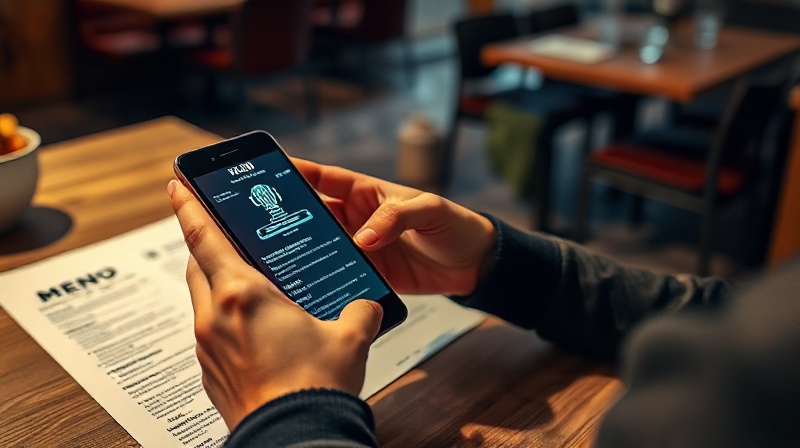
Café owner looking at digital QR menu on smartphone — Waitex
🗺️ Step-by-Step Guide

Digital QR Menu in 24 Hours — 9 Simple Steps

From sign-up to QR on your tables. No tech skills, no photographer, no commitment.

9 Steps ⏱️ Ready in 15 minutes 🤖 Smart Scan 🎁 30-day free trial 📧 We do it for you

Who is this guide for?

If you run a café, restaurant, tavern, bar or delivery business and want a digital menu with QR, you are in the right place. This guide shows you exactly what to do, step by step — from zero to sharing your link with customers.

Internet connection Phone or computer A photo of your old menu (optional)
📋 9 Steps

The 9 Steps to Your Digital Menu

Follow the order — each step takes no more than 5 minutes.

1
📧

Sign Up with Email

Create an account at waitex.app with an email address. Your email will not be visible on the public menu — it is used for login only. Free 30-day trial, no card required, no commitment.

2
🌍

Set Up Languages FIRST

Before doing anything else, go to Settings and set your menu's base language and translation languages. Everything you add next (categories, products) will be automatically translated into those languages. No limit on languages — we recommend 8-12 for maximum tourist coverage.

If you skip this step, already-added products will need individual manual translation.
3
🏪

Business Details

Fill in your business details in Settings: Facebook, Instagram, TripAdvisor, Google Reviews, contact email (this will be visible to customers), phone number, map location, opening hours. The more you complete, the more trustworthy you appear.

4
🎨

Theme, Logo & Photos

From Settings › Appearance, choose one of 30+ ready-made themes that match your style. Then upload your logo and a cover photo to give your menu a personal identity.

5
📝

Footer Notes

Set your Footer Notes — the text shown at the bottom of your menu. Perfect for announcements, delivery info, take-away phone number, or a short message to your customers.

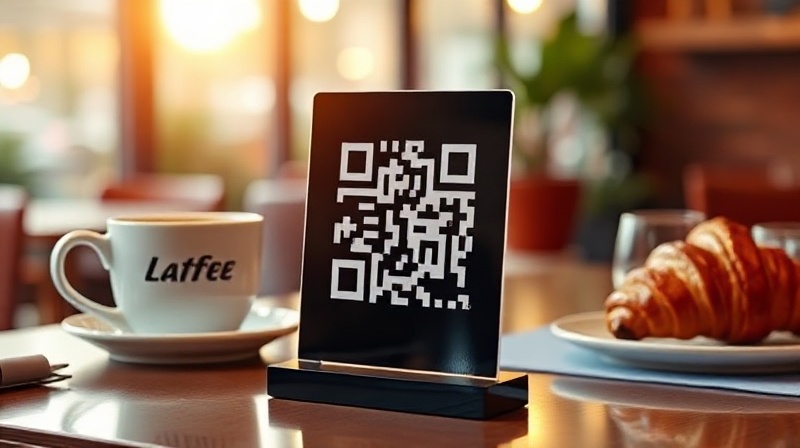
Smart Scan — photograph your menu and AI recognises all products — Waitex
6
🍽️

Categories & Products

This is the main part. You have three options:

📋 Manually — Create categories (e.g. Coffees, Desserts, Snacks) and add products one by one.

📷 Smart Scan — Upload a photo or PDF of your existing menu. One clear photo is enough. The AI recognises products automatically — tap "Add all" and your menu is ready in seconds. Our tool creates categories, products, descriptions, prices and images.

📧 Send us a message — Send a photo of your menu to support@waitex.app and we will digitize it for you — completely free, no commitment. We can also find your business details online (e.g. from TripAdvisor or Google Reviews).

Even if you have no food photos, you can generate AI images for every product with one click — no photographer needed.
7
📱

Print or Order QR Stands

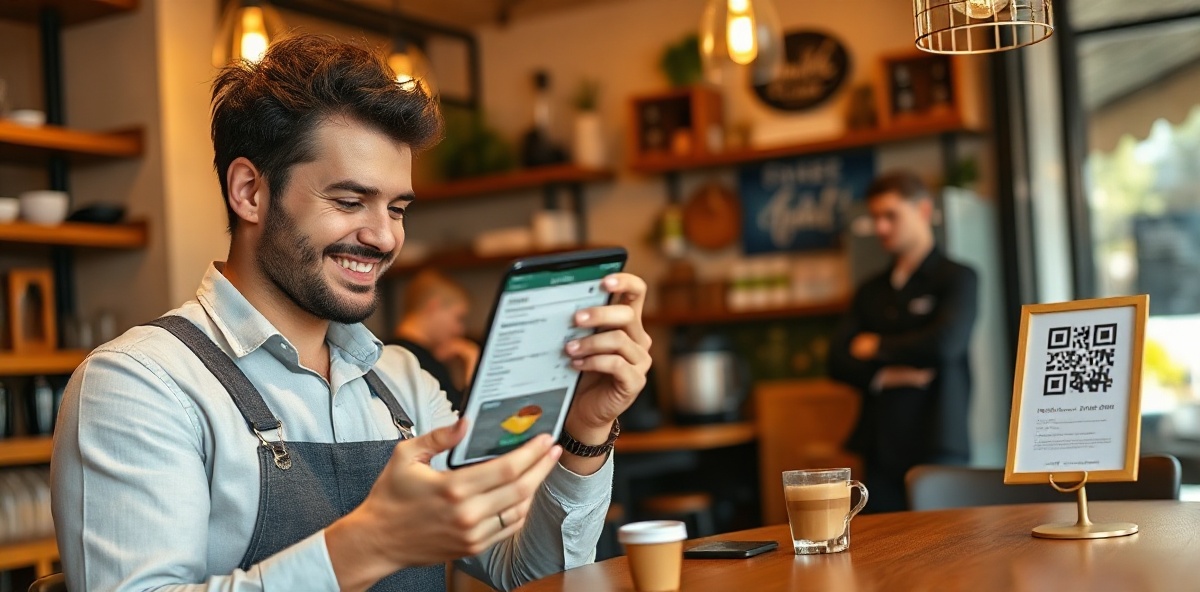
From the admin panel, download your QR code and print it or order professional acrylic QR stands for your tables. Place one on each table — customers scan with their phone camera, no app required.

QR code stand on restaurant table — Waitex digital menu
8
🎁

Try Free for a Whole Month

You have 30 days free to try Waitex with real customers. No card required, no automatic charge. Only if you decide to continue do you choose to pay.

9
🔀

You Will Never Reprint QR Codes — Ever

Even if you change your mind and want to switch to another provider, you do not need new QR codes. Waitex offers a redirect tool — your QR on the table keeps working, but sends customers to your new link:

waitex.app/mycafe www.newprovider.com/newcafe

The Result: Your Menu on Every Device

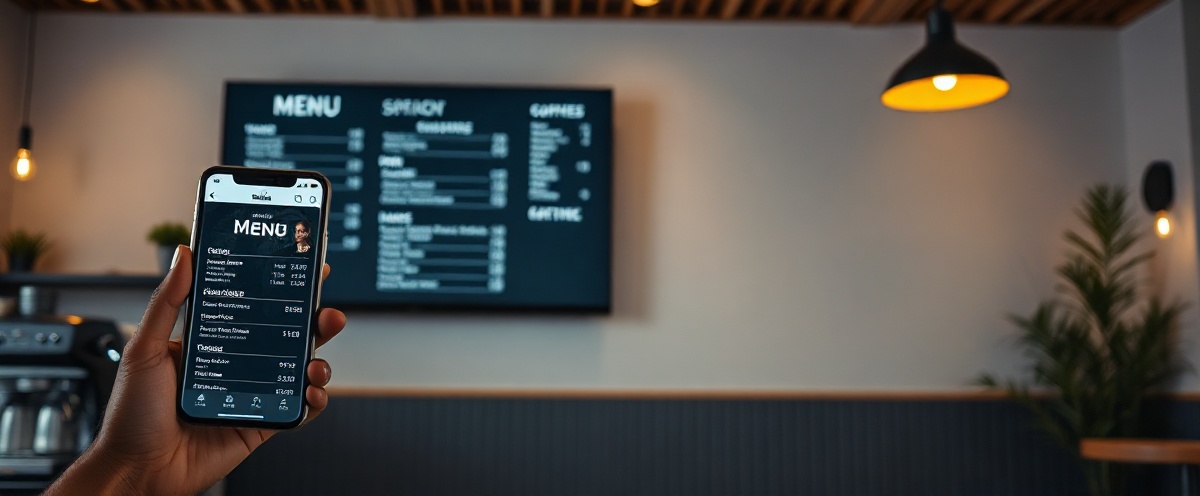
Phone, tablet, TV — one link, everywhere.

Digital menu on phone, tablet and TV screen — Waitex
🎁 Bonus

Bonus: Even More Tools

Once your basic menu is set up, take advantage of these two free extras.

📺

TV Slider

Connect any TV or tablet and display your products full-screen with auto slideshow. Just open waitex.app/mycafe/tv in the TV browser.

👋

Hi! Page

A ready-made page for your Instagram bio and social media: waitex.app/mycafe/hi — gathers all your links (menu, delivery, map, reservations) in one place.

🎉

Popup Banner

Announce events, happy hours or seasonal offers with a popup banner that appears automatically when customers open your menu.

⚠️ Watch Out

Common Mistakes to Avoid

⚠️

Forgetting languages at the start

Step 2 is critical. If you add products before setting languages, you will need manual translation for each one.

⚠️

Leaving categories disabled

After Smart Scan, check that all categories are enabled — otherwise they will not appear to customers.

⚠️

Skipping business details

A menu without a phone number, map and opening hours loses reservations and customer enquiries. Spend 3 minutes filling them in.

⚠️

Printing QR before testing

Before printing, scan your own QR code and check that the menu displays correctly on mobile.

❓ FAQ

Frequently Asked Questions

How long does setup take?
Basic setup (steps 1-5) takes about 5-10 minutes. Adding products with Smart Scan with the basic AI model takes another 2-5 minutes depending on the number. If you email us your menu, we deliver it ready within 24 hours using the most advanced AI image generation.
Do I need technical skills?
None at all. If you can upload a photo to Facebook, you can use Waitex. Every step has explanatory tooltips inside the admin.
Does the customer need to download an app?
No. The customer scans the QR with their phone camera and the menu opens in the browser. Zero apps, zero sign-ups.
What if I have no food photos?
No problem. With one click you generate AI images for all products at once — professional photos without a photographer, at no cost.
How much does it cost after the free trial?
€149/year or €15/month — only for the months you want. No automatic charges. We accept bank transfer, IRIS, PayPal and Revolut.
Can I switch providers later without losing my QR codes?
Yes. Waitex's redirect tool forwards your QR to any new link without needing to replace the QR stands on your tables.

Ready? Start Today

Free for 30 days — no card, no commitment. Or send us your menu and we will do it for you.

🌿 Create Your Menu →

Or email us: support@waitex.app

🎁 30-day free trial 💳 No card 🚫 No commitment 📧 We set it up for you